Notice: Function _load_textdomain_just_in_time was called incorrectly. Translation loading for the astra domain was triggered too early. This is usually an indicator for some code in the plugin or theme running too early. Translations should be loaded at the init action or later. Please see Debugging in WordPress for more information. (This message was added in version 6.7.0.) in /home/ljslurud/public_html/wp-includes/functions.php on line 6260

Deprecated: Function WP_Dependencies->add_data() was called with an argument that is deprecated since version 6.9.0! IE conditional comments are ignored by all supported browsers. in /home/ljslurud/public_html/wp-includes/functions.php on line 6260
Automated payment reconciliation process in UAE | TechfordAI

Payment Reconciliation Process in ERPNext

payment reconciliation process in erpnext

In businesses, the payments are sometimes received from customers or made to suppliers without reference to invoices. As a result, the invoices are shown as unpaid or overdue resulting in inaccurate reporting. 

Hence, it is ideal to reconcile the payments against the invoices periodically. The following are the step-by-step methods for payment reconciliation in ERPNext.  

1. Go to Payment Reconciliation

You can use the awesome bar to search, alternatively, you can find payment reconciliation process under Accounts Receivable and Accounts Payable cards in the ERPNext Accounting Module. 
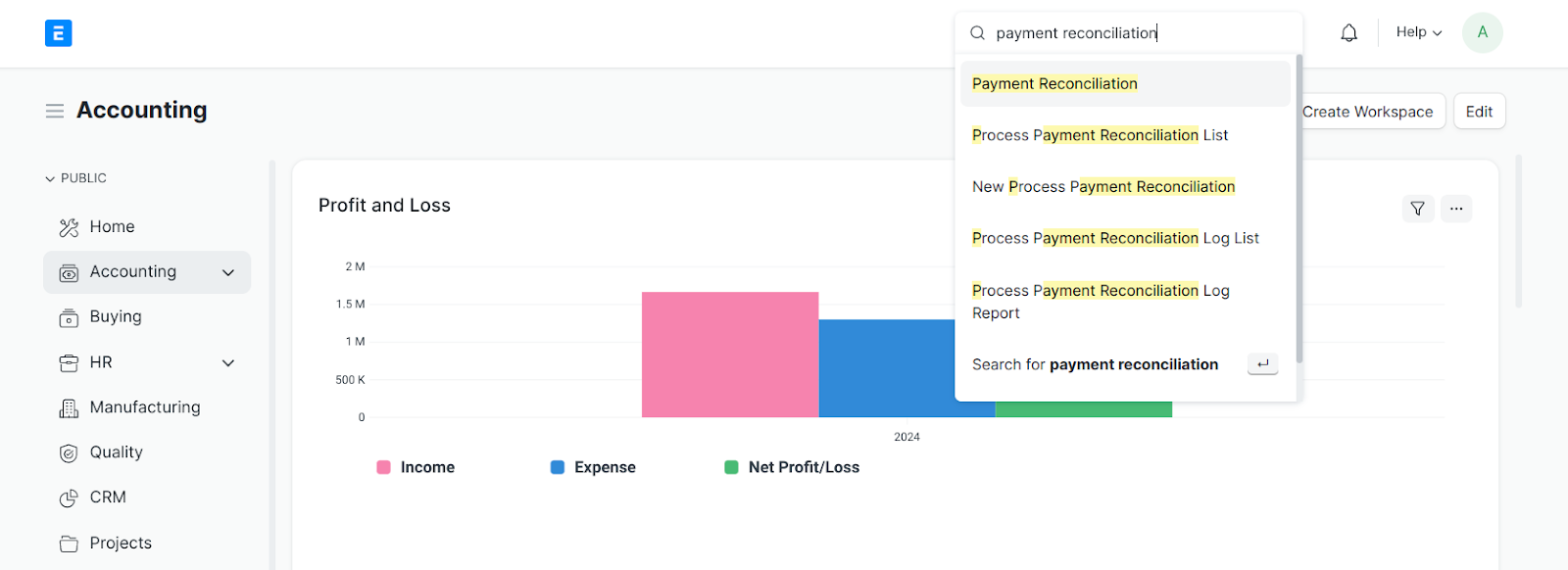

Payment Reconciliation in ERPnext 


2. Select the Party Type 

To reconcile the payments received, select customer and for payments made, select supplier. 
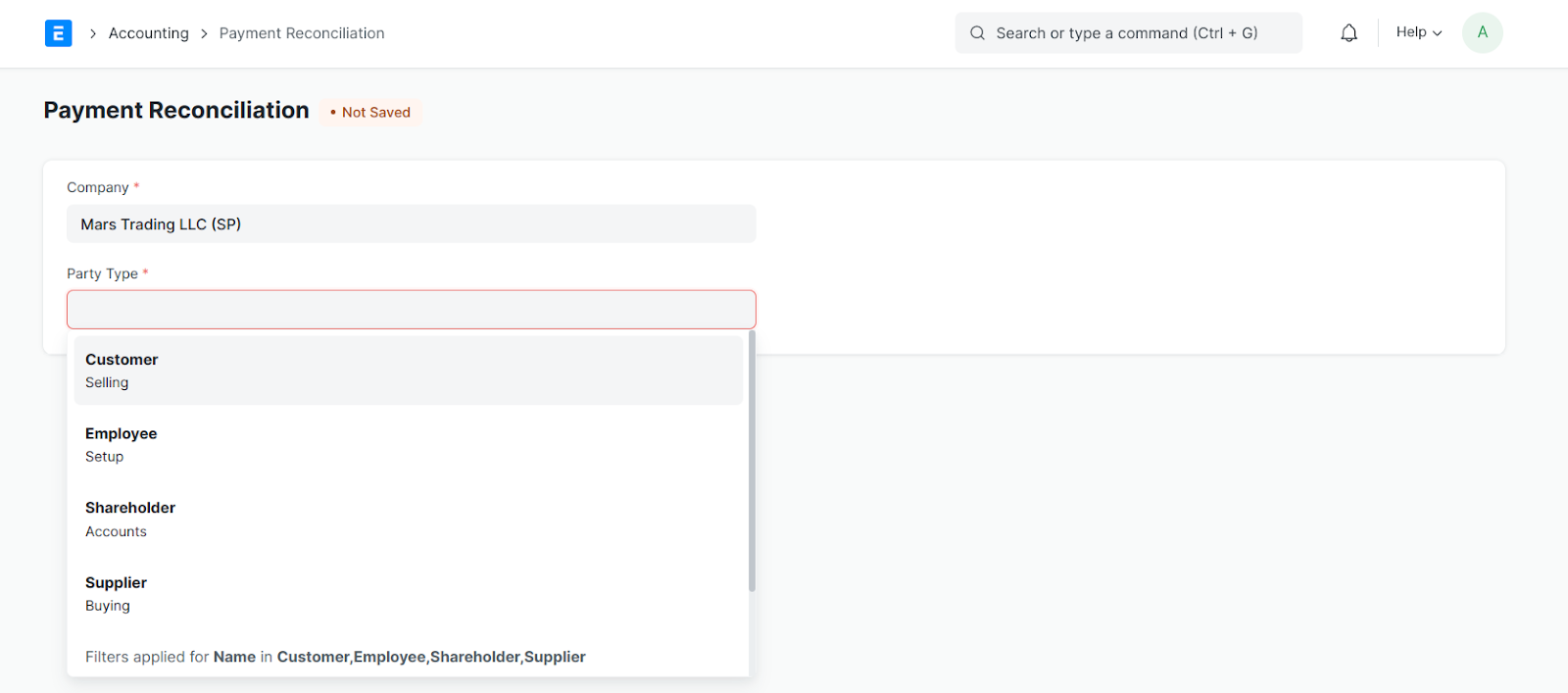
Payment Reconciliation in ERPnext


3. Select the Party Type as Customer and Select the Customer

Once the customer is selected as Party type, select the customer for which you want to reconcile. 
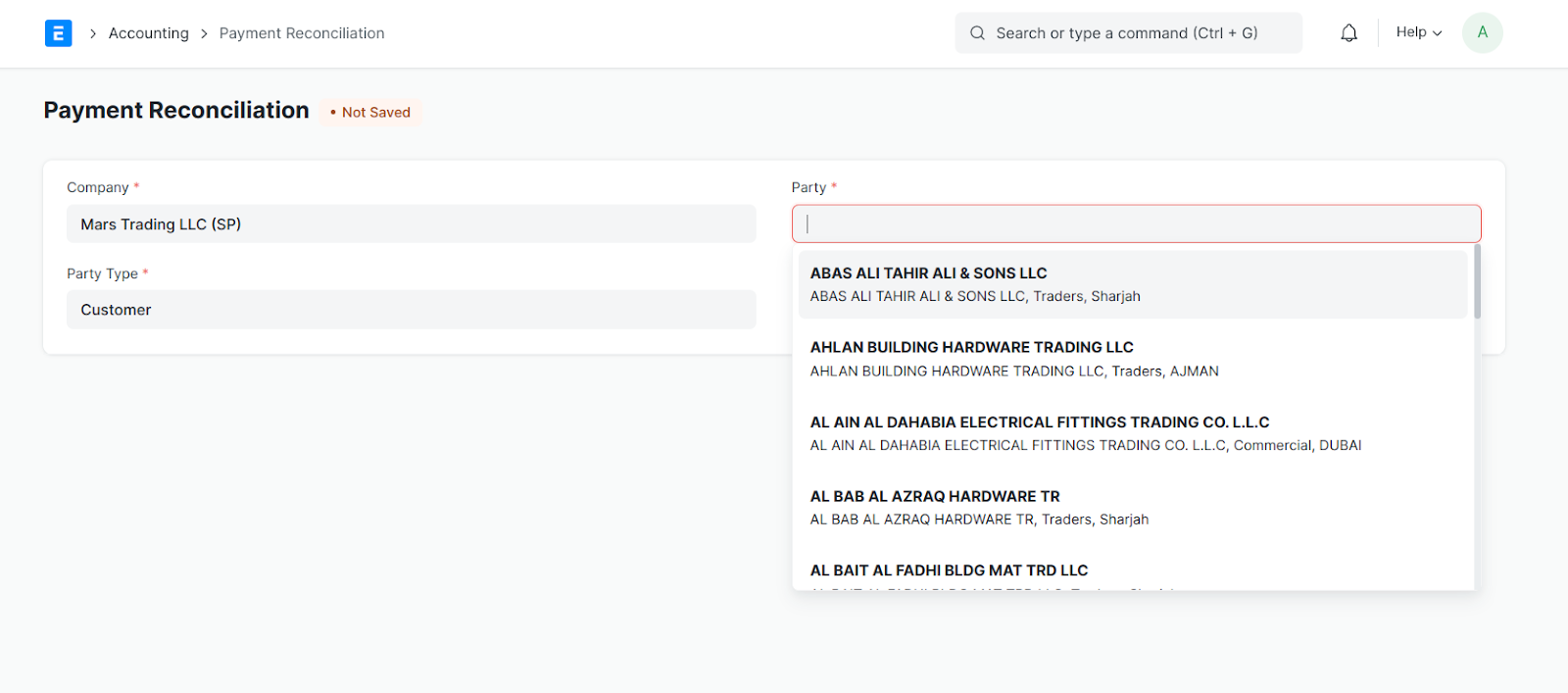
Payment Reconciliation in ERPnext


4. Click on “Get Unreconciled Entries” 

Once the customer is selected, click on “Get Unreconciled Entries” to fetch the outstanding invoices and payments. 
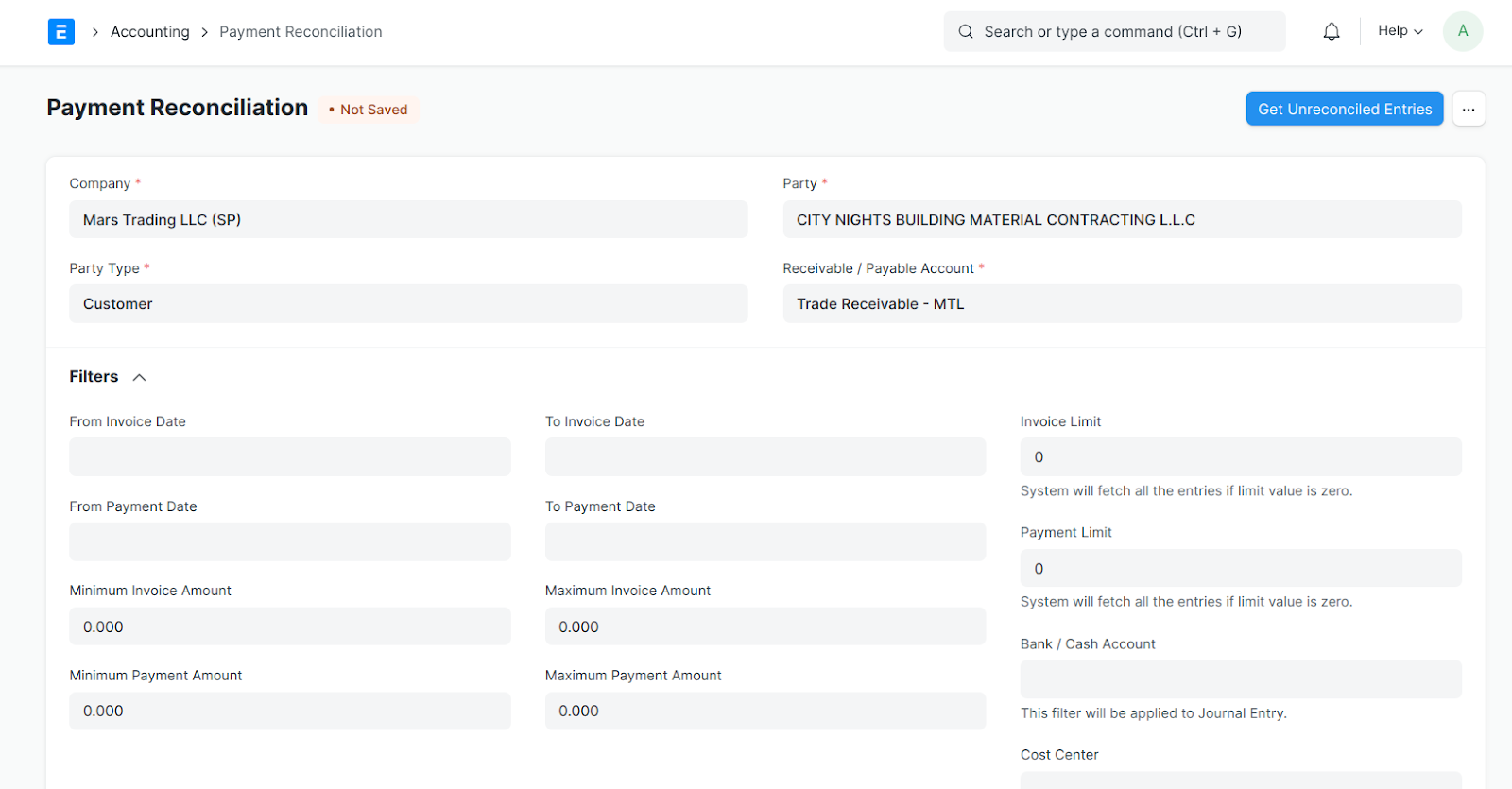
Payment Reconciliation in ERPnext


5. Allocate the invoice and the payment entries to reconcile

Once the unreconciled entries are fetched, select the invoices and the payment entries which needs to be reconciled and click on “Allocate” button. 
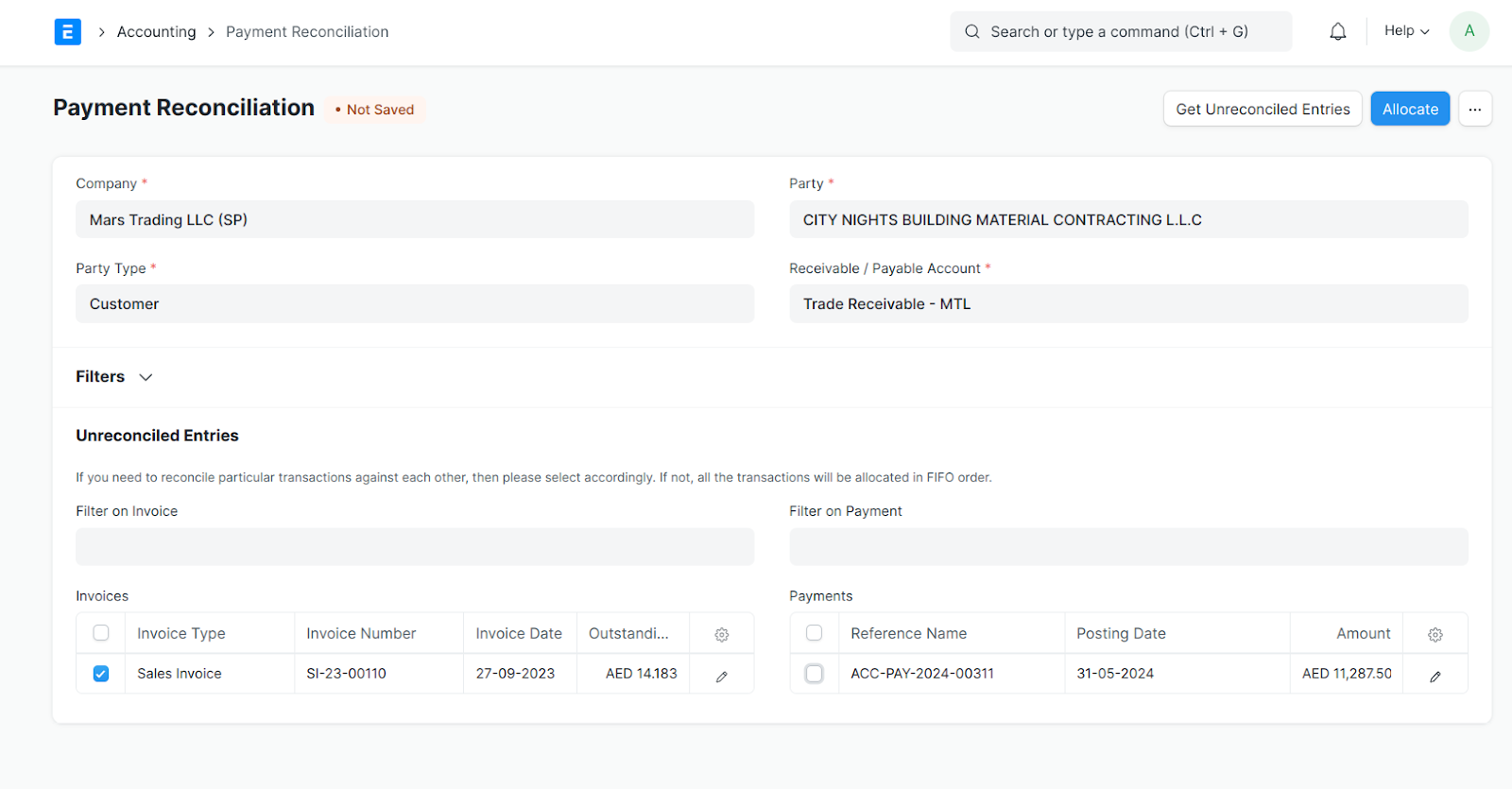
Payment Reconciliation in ERPnext


6. Check the allocated amounts and Reconcile

The amounts are automatically allocated and can be found under the “Allocated Entries” section. However, the allocated amounts can also be manually changed. Once the allocation is done, click on Reconcile to complete the Payment Reconciliation in ERPNext
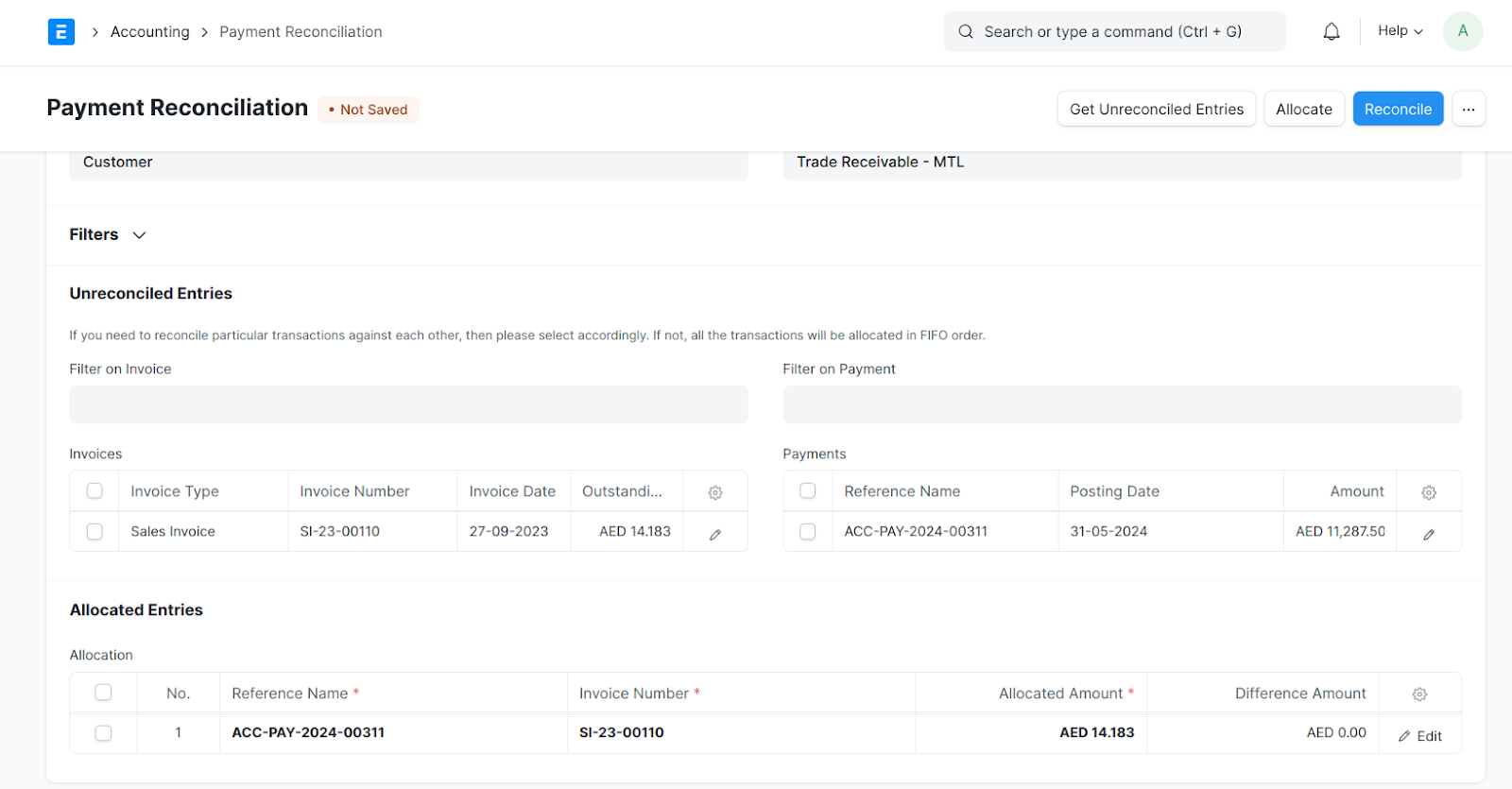
Payment Reconciliation in ERPnext

Upon completing the reconciliation, the status of Invoice/s will be updated as Paid, provided the full outstanding amount is allocated. The same process can be followed for Suppliers as well.

To learn more about how ERPNext can help your business, click here.

Scroll to Top